Here's how to get started
1
Install TapToClick
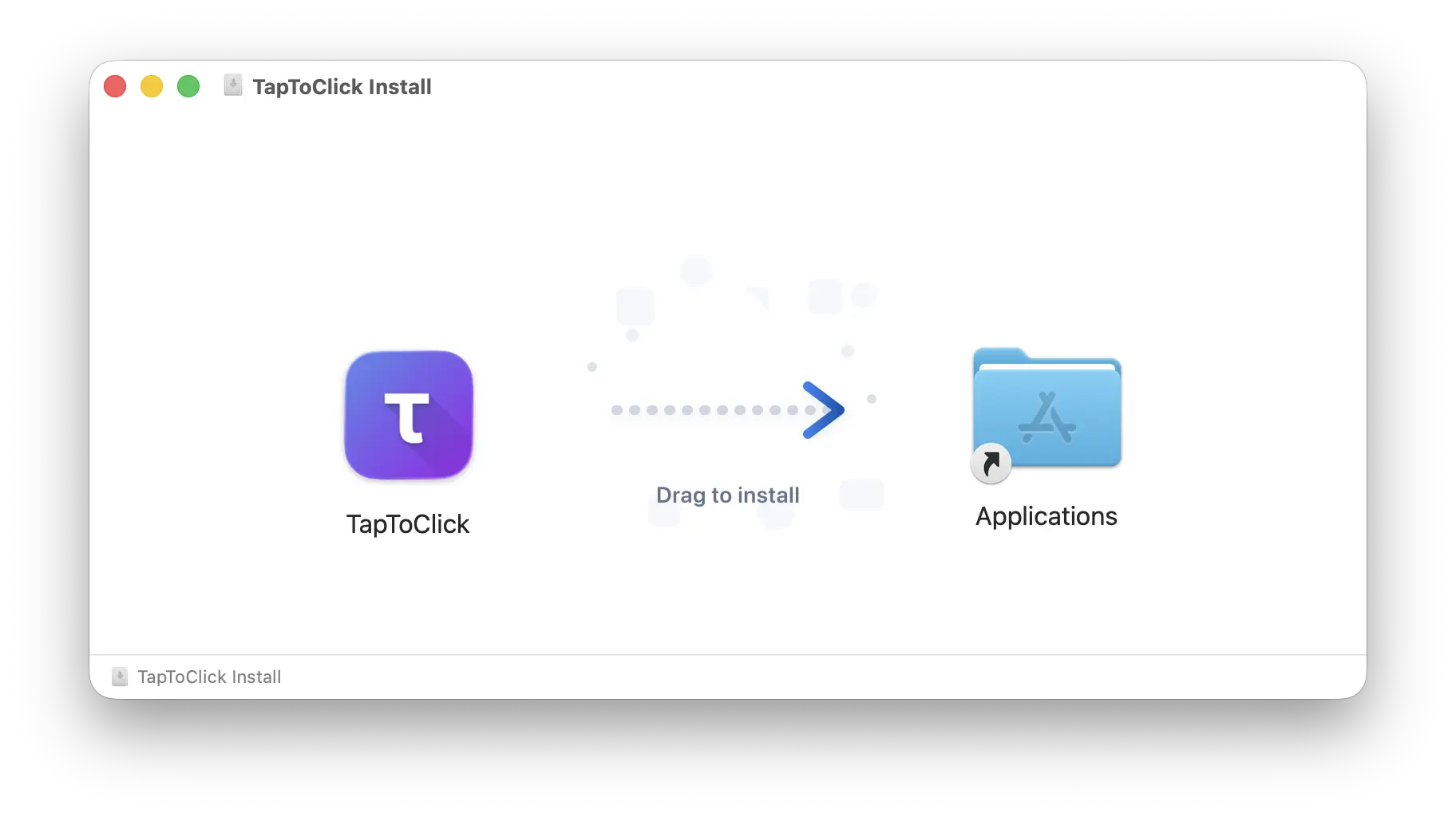
Open the downloaded .dmg file — you'll see the app icon. Drag it to your Applications folder, then launch TapToClick from there.
2
Grant Accessibility Permission
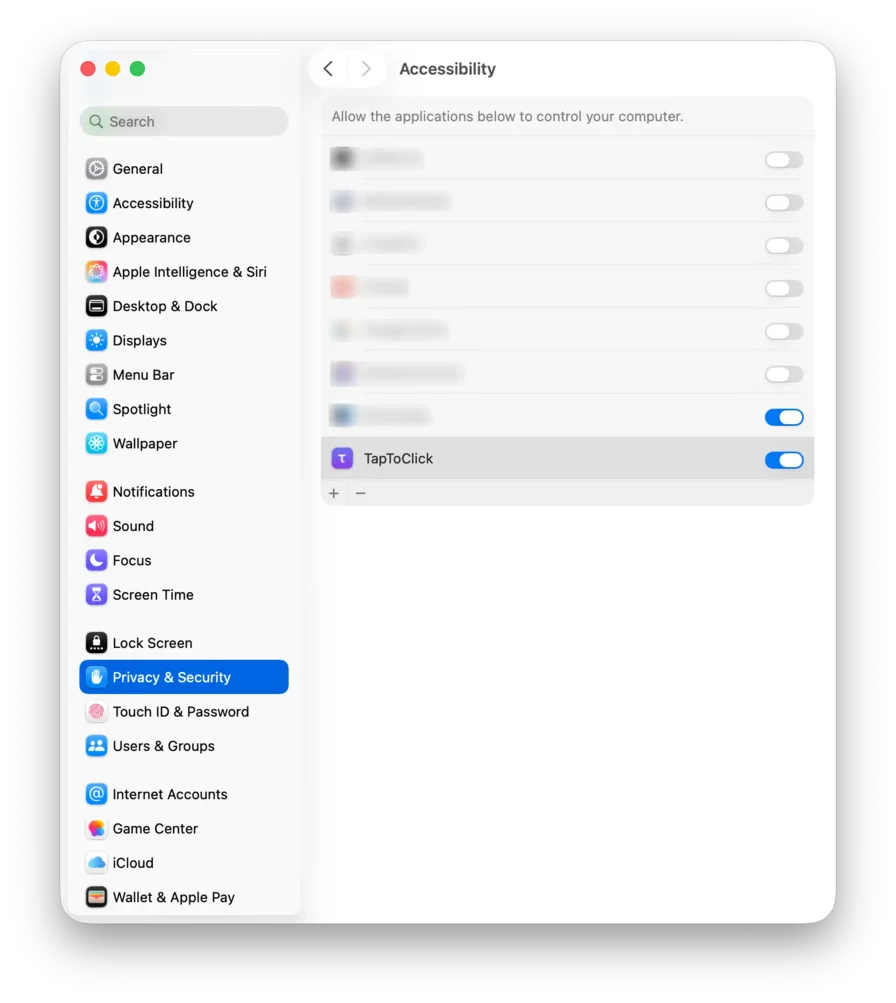
Open System Settings → Privacy & Security → Accessibility and toggle TapToClick on. This lets the app detect and send mouse events for your Magic Mouse.
3
Start Your Free Trial
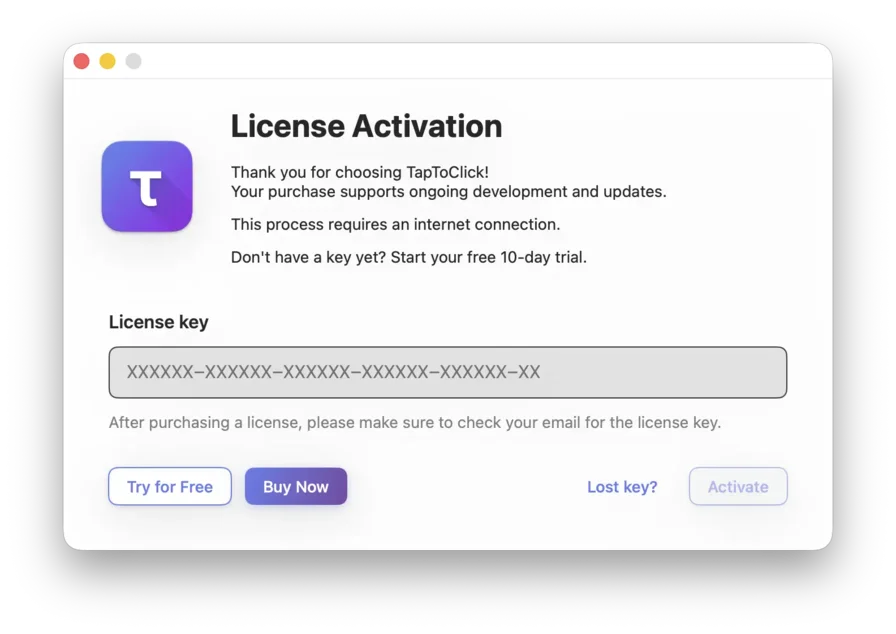
When the app asks for a license key, click "Try for Free" to activate your 10-day trial instantly. You can start without providing a credit card or any other personal details.
What's included in your trial
Valid for 10 days from first launch.
All features unlocked
All settings available
Email support during trial
System requirements
macOS 11 Big Sur or later
Magic Mouse gen 1 or 2
Internet for license activation
Need Help?
We're here to help you get started and answer your questions. We typically reply within 24 hours.